Table of Contents
Configure Inateck AS501S device
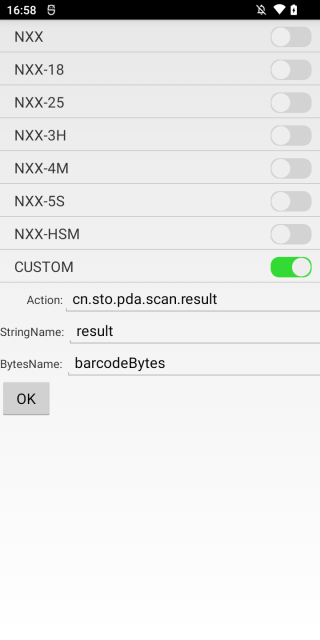
Scanner setup
- Open the Scanner app on the AS501S
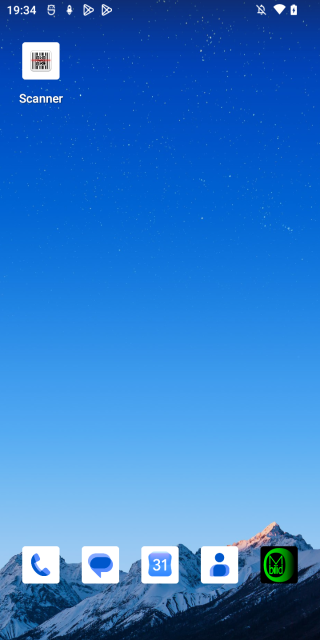
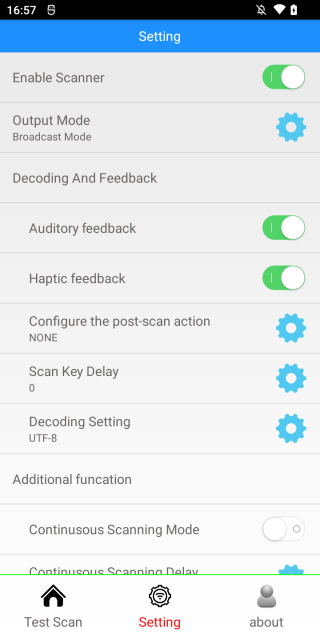
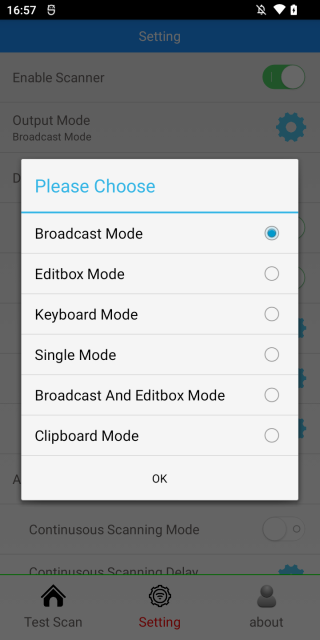
- Set Output mode to Broadcast mode
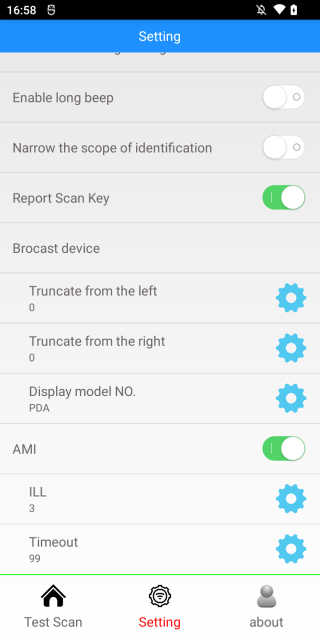
- Set Brocast device to CUSTOM (the setting is spelled this way on the device)
Mobilid setup
- Install Mobilid from the Google Play store, see Mobilid Android client
- Connect Mobilid to the demo or your own Dolibarr
- Open the main menu and tap Settings
- In the Android Terminal barcode readers section, enter:
- Broadcast name: 'cn.sto.pda.scan.result'
- Broadcast data key: 'result'
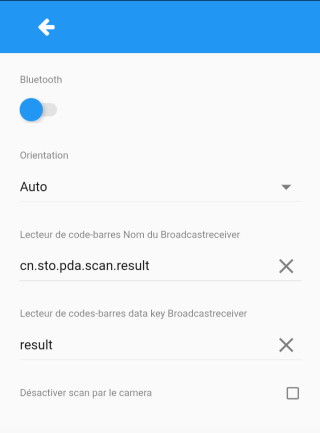
- Optionally tick Disable Camera scan to avoid opening the camera scanner by accident
- Exit and restart Mobilid, because the barcode reader is only detected at startup
- Scan a barcode to check the reading arrives in Mobilid